Obsidian as a Journal: A Complete Setup Guide
A complete Obsidian journal setup guide — vaults, Daily Notes, templates, plugins, and sync strategy. Plain-text journaling that lasts.
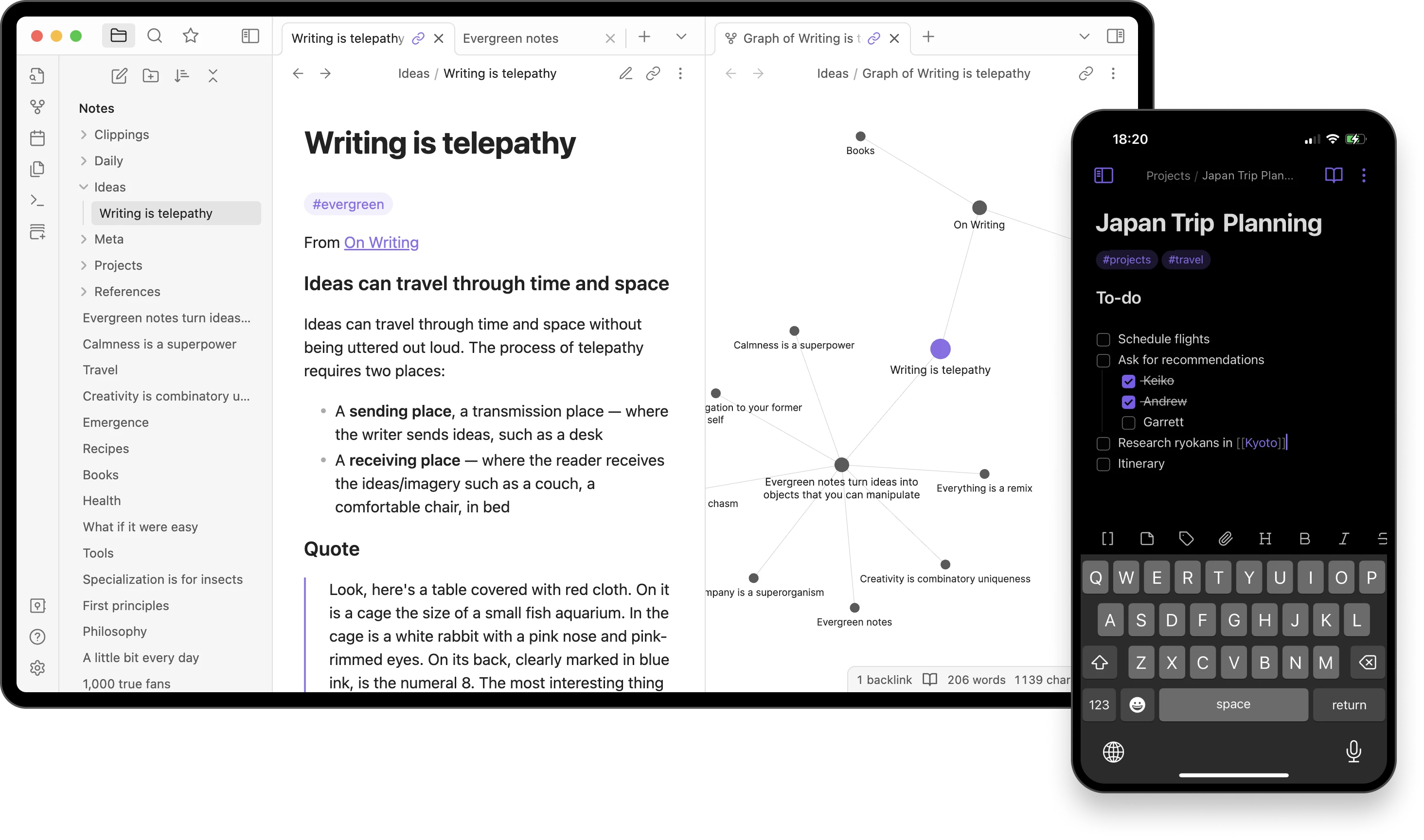
Obsidian is a folder of plain Markdown files plus an app that reads them. That sentence is the entire pitch — and it is also why Obsidian has unusual longevity as a journaling setup.
Out of the box Obsidian is a note-taking and personal knowledge management tool, not a journaling app. But with the Daily Notes core plugin, a single template, and a sync choice, you can set up a complete journal in about fifteen minutes. Here is the full guide.
Why Use Obsidian for Journaling?
Obsidian sits in a different category from purpose-built journaling apps. The trade-offs are worth understanding before you commit:
- Plain Markdown files: Every entry is a
.mdfile you can read in any text editor, on any operating system, in any decade. There is no proprietary format and no lock-in. - Local-first by default: Your journal lives in a folder on your own device. Nothing leaves your machine unless you explicitly enable sync.
- Generous free tier: The core app is free for personal and commercial use on Windows, macOS, Linux, iOS, and Android. No account required.
- Optional verifiable E2EE: If you opt into the paid Obsidian Sync service, encryption is end-to-end AES-256-GCM and the implementation is independently verifiable — rare transparency for any closed-source product.
- Links and backlinks: Wiki-style
[[page]]links accumulate a graph of relationships over time. Mention a person, a project, or an emotion across years of entries, and Obsidian connects them automatically.
If you already use Notion for journaling, the difference is structural: Notion is a cloud database; Obsidian is a folder of files. Both can work as a journal, but they fail in different ways. Our Notion journal setup guide covers the database approach if that suits you better.
What Research Can — and Cannot — Say About Structure
Before you build any elaborate setup, it is worth asking whether the structure changes anything — could you just open a blank file and write?
James Pennebaker and Sandra Beall’s foundational 1986 experiment compared students assigned to write about traumatic experiences with students assigned to write about superficial topics. It helped establish the expressive-writing paradigm, but it did not compare an Obsidian template with a blank page or isolate organisational structure as the active ingredient.
A 1998 meta-analysis by Smyth, published in the Journal of Consulting and Clinical Psychology, reviewed 13 expressive-writing studies and reported an overall effect across health outcomes. Later, larger reviews have found smaller and variable effects. These studies test particular writing instructions and schedules; they do not validate Daily Notes, folders, frontmatter, or the template below.
The takeaway for your Obsidian setup: templates and folders can reduce setup decisions and make entries easier to find. Treat them as usability tools, not as clinically validated ingredients.
A separate line of research provides a reason to try a gratitude component. In three experiments, Emmons and McCullough (2003) found that gratitude-listing groups differed from comparison groups on several, but not all, outcomes; positive affect was the most robust finding. The study does not establish that a daily Obsidian prompt is necessary or optimal, so the prompt below is optional.
The tool mainly changes the practical experience: how quickly you can start, how entries are organised, and how portable they remain. If you want to compare structured prompts with open-ended writing, our guide to free writing versus guided journaling walks through the evidence and its limits.
The Setup: Step by Step
Step 1: Create the Vault and Journal Folder
Download Obsidian from obsidian.md — it is free on every platform. On first launch you will see the Vault wizard. A vault is just a folder on your disk; pick somewhere you back up (your Documents folder is fine for most people) and name the vault something durable like “Personal” or your own name.
Inside the vault, create a folder called Journal/. Every daily note will land here. Create a second folder called Templates/ while you are there.
Step 2: Enable the Daily Notes Core Plugin
Open Settings → Core plugins. Find Daily notes in the list and toggle it on. Then open Settings → Daily notes and configure three things:
- Date format:
YYYY-MM-DD(this sorts naturally in the file list) - New file location:
Journal/ - Template file location: leave blank for now — you will fill this in after Step 3
Hit Cmd/Ctrl + P to open the command palette, type “Daily notes”, and assign a hotkey if you like (Settings → Hotkeys). A shortcut removes one small piece of friction when you want to write.
Step 3: Build a Daily Note Template
Enable the Templates core plugin (Settings → Core plugins → Templates), then open Settings → Templates and point Template folder location at Templates/.
Now create a new file called Templates/Daily.md with the following content:
---
date: {{date}}
mood:
energy:
tags:
---

# {{date:dddd, D MMMM YYYY}}

## Morning Check-in
- How am I feeling right now?
- What is my intention for today?
- One thing I am grateful for:

## Evening Reflection
- What went well today?
- What was challenging?
- What do I want to remember about today?
Go back to Settings → Daily notes and set Template file location to Templates/Daily.md. From now on every new daily note will start with this skeleton.
The prompt set above mirrors the one used in our Notion journal setup so the two systems are easy to compare. It is an editorial check-in template, not Pennebaker’s expressive-writing protocol and not a research-validated five-minute intervention.
Step 4: Add Frontmatter Properties for Querying Later
The block between the --- lines at the top of the template is YAML frontmatter, and Obsidian treats those keys as queryable properties. The fields above — mood, energy, tags — become structured data you can later filter, sort, or chart with the Dataview community plugin.
A simple convention works best:
- mood: one word —
calm,anxious,energised,flat,joyful - energy: a number 1–10
- tags: an array —
[work, family, health, gratitude]
Fill the values in as you write. After a month of entries you will have a small structured dataset describing your inner life — searchable, sortable, and entirely on your own machine.
Step 5: Choose Your Sync Strategy
This is the only step that requires a real decision. You have three honest options:
Option A: Obsidian Sync ($4/month, billed annually). The official sync service uses default-on end-to-end encryption with AES-256-GCM, scrypt key derivation, and HKDF, and Obsidian publishes a verification guide so a technically inclined user can confirm the encryption themselves. This is among the most rigorous E2EE options in mainstream journaling — see our encrypted journaling apps roundup for the full comparison.
Option B: iCloud, Google Drive, or Dropbox (free). Place your vault folder inside a synced folder from your existing cloud provider — privacy depends entirely on that provider’s encryption, and Apple’s iCloud with Advanced Data Protection enabled is the strongest of the three. Easiest for casual users who already pay for cloud storage; the trade-off is documented in our journaling app privacy comparison.
Option C: Syncthing or self-hosted WebDAV (free). Peer-to-peer or self-hosted sync with no third party in the loop — maximum privacy and maximum configuration effort. Recommended only if you already self-host other services.
Whichever option you pick, install the Obsidian mobile app and point it at the same vault. The mobile app is functional but less polished than desktop — fine for jotting an entry on the go, less ideal for long writing sessions.
Step 6: Build a Dashboard Note
Create a single file called Dashboard.md at the root of your vault and pin it to the sidebar (right-click the file → Pin). A useful dashboard contains three things:
- A way to open today’s daily note. The cleanest approach is to assign a hotkey (Settings → Hotkeys) to the Daily notes: Open today’s daily note command — no plugin needed. If you have the Dataview community plugin installed (covered in Advanced Tips below), you can also embed a live link with the inline query
`= "[[Journal/" + dateformat(date(today), "yyyy-MM-dd") + "]]"`. - A list of recent entries — manually maintained or generated with a Dataview query if you install that community plugin.
- A note about your current weekly focus or theme.
The dashboard exists so that opening Obsidian gives you an immediate sense of where you are in your practice. Without it, the app opens to whatever file you were last editing — which is fine, but easy to drift away from.
Tips for Making It Stick
Pin Daily Notes to the sidebar. If opening today’s entry feels needlessly slow, pin the file, set a hotkey, or both. This is a convenience choice, not a proven habit rule.
Install Obsidian on your phone. Same vault via whichever sync option you chose. Most journaling happens in the small moments — a thought on the train, gratitude before sleep, a frustration during lunch. The phone is where you capture those.
Do not over-engineer it. The single most common Obsidian failure mode is spending three weeks building an elaborate dashboard with twelve plugins and zero journal entries. Start with the six steps above and write for a month before adding anything. Our 5-minute journaling method is a useful counterweight — three prompts, done in minutes, no system required.
Review when it is useful. You might spend five minutes opening recent notes and looking for recurring themes. This is an editorial review practice, not an established therapeutic mechanism. Skip it if revisiting entries is unhelpful or distressing; our journaling and mental health guide discusses the limits of the evidence.
What Are the Trade-offs?
Obsidian is not the right tool for everyone. Be honest with yourself about the friction:
- No out-of-the-box mood UI: Day One and Daylio give you tap-to-rate mood and energy widgets. Obsidian asks you to type values into frontmatter and visualise them later with a community plugin.
- No native multimedia: Embedding photos and audio works, but the experience is rougher than dedicated journaling apps. Day One’s photo, audio, and location handling are still best-in-class — see our Day One alternatives roundup for the comparison.
- Plugin sprawl temptation: The community plugin ecosystem is enormous. It is easy to spend more time configuring than writing.
- Mobile is less polished: The mobile app works, but feels like a port of the desktop app rather than a phone-first experience. Day One and Journey are smoother on mobile.
- No “On This Day” feature by default: One of the loveliest journaling features — reading what you wrote a year ago today — requires a community plugin in Obsidian. Most dedicated journaling apps include it.
If any of those sound like dealbreakers, a purpose-built journaling app is probably a better fit. Our Day One alternatives roundup covers the polished options.
Advanced Tips
Once you have been writing daily entries for a month or two, these techniques can deepen the setup. Skip them at the start.
Periodic Notes Plugin for Weekly and Monthly Review
The community Periodic Notes plugin extends the Daily Notes idea to weekly, monthly, quarterly, and yearly notes — each with its own template and folder. A weekly review note with prompts like “What pattern do I notice this week?” turns the journal into a genuine reflection tool, and a monthly note can roll up the previous four weeks.
One caveat: Periodic Notes remains in the community plugin browser and works on current Obsidian, but its main branch has not received a merged commit since August 2024 — expect new bug fixes to land slowly.
Dataview Queries for Light Analytics
Install the Dataview community plugin and you can query your journal entries the way you would a database. A simple query in your dashboard — wrap it in a fenced dataview code block in any note:
TABLE mood, energy
FROM "Journal"
WHERE file.day >= date(today) - dur(7 days)
SORT file.day DESC
…produces a live table of the last seven days of mood and energy values. With more practice you can chart trends over months. This is where Obsidian quietly competes with database-driven tools.
Backlinks as a Relationship Map
Mention people, projects, or recurring themes as wiki-links: [[People/Sarah]], [[Projects/Marathon Training]], [[Themes/Anxiety]]. Over time, opening any of those pages shows you a backlinks panel listing every journal entry in which they appeared. After a year of consistent journaling, this becomes a useful structured map of your own life — searchable, and built entirely from links you would have made anyway.
Templater for Dynamic Templates
The community Templater plugin extends the bundled Templates plugin with date math, prompted variables, and conditional logic. A Templater-powered daily template can automatically include a link to yesterday’s entry, prefill the day of the week, or generate a different prompt set on Mondays versus Sundays. Useful once you know what you want; not worth installing on day one.
My Verdict
Obsidian is the strongest choice when data ownership is your priority. Plain Markdown files in a folder you control will still open in fifty years, regardless of what happens to any company, and the verifiable E2EE on Sync is among the strongest privacy stories in mainstream journaling. The link graph quietly accumulates into something genuinely useful over years.
Obsidian is a hard sell if you want to open an app and just start writing. The setup steps above are not difficult, but they are not zero either. If that friction sounds tiring, Day One and the other apps in our Day One alternatives roundup get you writing in seconds.
If you are torn between Obsidian and Notion specifically, the choice is really about local files versus cloud database. Our Notion journal setup guide covers the cloud-database approach in the same depth. And if privacy is the deciding factor, our encrypted journaling apps comparison ranks Obsidian against every other E2EE option.
Start today: download Obsidian, create a vault called Personal, make a folder called Journal, enable Daily Notes in core plugins, and write three sentences tonight. That is the entire starter setup. The dashboard, the Dataview queries, and the Templater logic can all wait until you have a week of entries behind you.
Frequently Asked Questions
Is Obsidian good for journaling?
Yes, especially if you value plain-text portability and local-first privacy. It requires more setup than a dedicated journaling app, but the Daily Notes plugin, a template, and a folder convention give you the equivalent in about 15 minutes.
Is Obsidian journaling free?
Yes. The core app is free for personal and commercial use on every platform. Optional Obsidian Sync is $4 per month billed annually; you can substitute free iCloud, Google Drive, or Dropbox if you prefer.
How do I create a journal template in Obsidian?
Enable the Templates core plugin, create a Templates/Daily.md file with your prompts, then point Daily Notes settings at it. Every new daily note will start from that template.
Is Obsidian private enough for journaling?
For local-only use, yes — files never leave your device. If you enable Obsidian Sync, encryption is end-to-end AES-256-GCM with an independently verifiable scheme. With third-party sync like iCloud or Dropbox, privacy depends on that provider’s encryption.
What’s the difference between Obsidian and Notion for journaling?
Obsidian is a folder of plain Markdown files you own; Notion is a cloud database. Obsidian wins on privacy and long-term portability; Notion wins on multi-device polish and database analytics out of the box. See our Notion journal setup guide for the cloud-database approach.
Do I need plugins to journal in Obsidian?
Only the bundled Daily Notes and Templates core plugins. Community plugins like Periodic Notes, Dataview, and Templater are optional power-ups, not requirements.